Question: How do I install Grammarian PRO2 X (Mac)? Answer:
Follow the instructions in the "Grammarian PRO2 X Installation instructions" file (in the Grammarian PRO2 X folder).
Or you can follow the instructions here.
Question: How do I check a document with Grammarian PRO2 X? Answer:
Use the Grammarian Pencil Menu or Grammarian Input Menu to access all Grammarian PRO2's grammar checking features. With your document window that you want to check frontmost, select the Check All or Check Selection menu item in the Grammarian Pencil Menu or Grammarian Input Menu. Take a look at the document checking video clip here.
Question: How do I use Interactive Checking (check-as-you-type) with Grammarian PRO2 X? Answer:
Use the Grammarian Pencil Menu or Grammarian Input Menu to access Grammarian PRO2's Interactive Checking features. Grammarian’s Pencil menu will indicate a yellow color if interactive spell checking is on, a green color if interactive grammar checking is on, and a yellow-green color if both are on. A red colored Pencil Menu indicates that interactive checking is off. Grammarian remembers the interactive (check-as-you-type) settings for every running application. The ESC key or a mouse click cancels the Interactive Checking window. Also, canceling after typing a preset number of words is a preference setting. Take a look at the interactive checking video clip here.
Question: Do you need an active internet connection to use Grammarian PRO2 X? Answer:
No. An internet connection is not needed to use Grammarian PRO2.
However, an internet connection is needed only to activate your computer. This must be done only once after you receive an activation code. Also, you would need an active internet connection to view your current licensed activations in the Grammarian PRO2 Licenses window. This is convenient for site licenses.
No online account is needed. And no monthly online usage fees are required.
Question: I installed Grammarian and rebooted, but I have no Pencil Menu. Answer:
1. Do you have a flag menu on the right side of the menu bar and is Grammarian in it? If so, just turn the Grammarian item on.
2. If you do not have a Grammarian item or a flag menu, then try this. Run Grammarian's Uninstaller in the Grammarian PRO2 folder.
We must try to wake the system for it to add the Grammarian item to the flag menu. The system loads Grammarian PRO2 via the flag menu (Input Menu).
First, try clicking the Reset MacOSX System Input Menu Preferences button at the bottom.
Next, select option #2 -- Grammarian PRO2 Input Menu Only. Click Uninstall. Then reboot.
Run Grammarian and let it install a new input menu. Then reboot again.
Normally, rebooting twice isn't necessary. We're stating to do so here, just to make sure that the system DOES recognize the change and DOES save it to its preferences.
Question: I am trying the free trial. Why are the Grammarian PRO2 app menu items greyed? Answer:
The Grammarian PRO2 app doesn't work as you would normally expect. It works more like a background app. Use the Grammarian Pencil Menu or Grammarian Input Menu (checkmark) to access Grammarian PRO2's functionality. Grammarian actually works on the original document that you are working on.
Question: Is Grammarian PRO2 X compatible with Mavericks/Yosemite/El Capitan/Sierra? Answer:
Yes, Grammarian PRO2 X is tested on all Mac OS versions from Snow Leopard 10.6 to Sierra 10.12.
Question: How does Grammarian PRO2 X work in Mac OS X? Answer:
Grammarian PRO2 X introduces a 64-bit Apple-sanctioned input method named "Grammarian". This appears in the flag menu (top right side of menubar) as shown here:
The Grammarian input method installs a Grammarian Pencil Menu on the menubar that is usable to access Grammarian's functionality. Make sure that Grammarian is turned on here. You do this by clicking on the flag menu and then by selecting the Grammarian item. The Grammarian item is on when a checkmark precedes the Grammarian item.
Question: I upgraded from Grammarian PRO X, and now Grammarian PRO2 X acts strangely. Answer:
If you still have the Grammarian PRO X folder in the Applications folder along with the Grammarian PRO2 X folder, remove this Grammarian PRO X folder as it will interfere with launching of the Grammarian PRO2's application.
Question: I use Apple's Pages. Why am I losing my footnotes when Grammarian pastes my changes? Answer:
This is an Apple Pages clipboard export bug. "Footnotes" is a format included in the RTF Text format design specifications. Therefore, this is unexcusable to not address this bug. Tell Apple about their bugs. If the document format is not first exported to the clipboard, you won't get it when the text is pasted back to the clipboard. This is NOT a Grammarian issue.
Question: Does Grammarian PRO2 have a user operating manual? Answer:
Yes, a manual is included with Grammarian PRO2. You access the manual from the "Grammarian Help..." menu item of the as shown below:
Question: The Grammarian checkmark input menu turns into the flag menu every time MS Word opens a document. What is going on? Answer:
MS Word version 14.4.3 introduced a bug. Whenever you create or open a document, MS Word sets the system language. This turns off any current input method (the Grammarian PRO2 input menu). MS Word versions prior to this work fine. In order to use Grammarian PRO2 in a MS Word document with this version of MS Word, you must turn Grammarian PRO2 back on in the flag menu.
Update: Microsoft fixed this issue in v14.4.4 dated 08-27-14Tested and verified.
Question: Many times while I'm typing a contraction such as "they're or I'll", the cursor moves back one character after pressing the spacebar. Is this a problem with Grammarian PRO2? Answer:
No. This is a conflict with the Mac OS X system, specifically Apple's Keyboard smart quotes and dashes option. To fix this, turn off "Use smart quotes and dashes" in the System Preferences/Language & Region/Keyboard/Text pane: 1. Open System Preferences. 2. Click Language & Region. 3. Click the "Keyboard Preferences..." button to display the Keyboard pane. 4. Then click the Text tab:
The checkbox preference "Use smart quotes and dashes is on the middle right side of the window.
Question: When I boot my Mac, the Grammarian PRO2 Input Menu (No Pencil Menu) is no longer active or is greyed. Is a fix available? Answer:
This is a Mac OS system issue. The system is not saving and updating its system HiToolBar preferences.
Forcing the system to rebuild its preferences usually fixes it. Try this:
1. Run the Grammarian PRO2 Uninstaller in the Uninstaller-Grammarian_PRO2_X folder. Click "Reset MacOSX System Input Menu". Then select item "2. Grammarian PRO2 Input Menu Only". Click "Uninstall":
2. Reboot.
3. Run the Grammarian PRO2 app, and let Grammarian install a new input menu.
4. Reboot.
The system writes the HiTooBar preferences on the reboot when it discovers that an input menu change occurred.
Question: Grammarian changes the Pencil Menu/Interactive Checking Menu settings when I switch or launch new apps. Is this correct? Answer:
Grammarian remembers the Pencil Menu/Interactive Checking menu settings for every individual app. In other words, Grammarian automatically switches the settings for the current active app to what these were the last time that these settings were changed for this app. This allows customizing with different settings for every app. For instance, many apps do not even need interactive checking.
Question: Can Grammarian PRO2 calculate the readability of a document? Answer:
Yes. Readability is grouped along with other document text statistics items and is available via the Grammarian PRO2 Pencil Menu items, "Statistics" and "Statistics Analysis". The Statistics function analyzes the whole document, and the Statistics Analysis function does a sentence-by-sentence breakdown of the document. The Readability Statistics of a document can also be saved by using the Grammarian "Save As..." File menu item.
Question: Is there an easy way to navigate from one error to another in the Checking Document window? Answer:
You can navigate through the errors in the Error View portion of the Document Grammar Check window. Click on an underlined error to navigate as shown here:
video
Question: How do you look up words in the dictionary lookup during a grammar check? Answer:
You can look up words and phrases in the Document Grammar Check window. Follow this movie clip for examples:
video
Question: How can I prevent Grammarian PRO2 from starting up when restarting the computer? Answer:
The Mac OS X system launches Grammarian at startup. You can turn this off by selecting the flag instead of Grammarian under the flag menu on the menu bar as shown here:
Question: Grammarian crashes when it checks spelling. First, it suggests strange suggestions, and then it crashes. Answer:
This could be a corrupt spelling dictionary symptom if the crash point on the crash log is "Find_Metaphone_Dict_Match".
To fix this:
1. Quit the Grammarian app.
2. Run the Grammarian Uninstaller located in the Uninstaller-Grammarian_PRO2_X folder. Select the Uninstall "Grammarian PRO2 Spelling Dictionaries Only" option.
3. After this is finished, run the Grammarian PRO2 app. Grammarian will install all new spelling dictionaries. This is the easiest way to troubleshoot and fix this.
Question: Can I enlarge the text size in the Grammarian Check Window? Answer:
Yes. Open the Grammarian Preferences window. Click on the Window Features tab.
Set the Check Window Font:
1. Sentence Font Size to 13 or 14.
2. Click "Use large font for suggestions" to on.
On the Check Window, set the lower popup menu on the bottom of the Error View to 125% or 150%:
Question: Can I turn off Interactive Checking for only a particular app? Answer:
Yes. The Grammarian Interactive Checking settings are PER application are and NOT global. All settings in the Interactive Checking menu are remembered by Grammarian for each app. If you change one of these settings, you are changing it for only the front active running app.
To turn off interactive checking for any special app, you must make the particular app active (top frontmost). Then select the Interactive Checking menu. Turn off any of the settings in the menu. To stop the automatic display of popup windows, turn off AutoShow Spelling and AutoShow Grammar. To stop the alert sounds, turn off Interactive Sounds.
You can turn off all the menu items, Spelling Checking, Grammar Checking, AutoCorrect, and AutoType if you like. The Pencil menu icon changes color (yellow/spelling, green/grammar, red/all off) to reflect what is "on/off" in the Interactive Checking menu.
Pencil Menu Legend:
Red: Off
Yellow: Spelling Checking
Green: Grammar Checking
Yellow/Green: Spelling Check and Grammar Check
Underscore line on right: AutoShow Spelling Check or AutoShow Grammar Check
You can verify these settings by quitting the special app, running it again, and checking the Grammarian Interactive Checking menu again.
Question: Is there a way to check for updates to Grammarian PRO2? Answer:
Yes. You can check for the latest version from the Grammaria PRO2 app Web menu. Select the menu item: Check for Grammarian PRO2 X Updates:
Question: MS Word 2016 loses document formatting when Grammarian PRO2 pastes changes into the MS Word document. What is happening? Answer:
This is a specific issue with MS Word 2016. We have a workaround/permanent solution for this in Grammarian PRO2 v2.0.16.
See our downloads page. (10/12/17)
For MS Word 2016, you should set the Paste Changes Popup menu setting for "2. Paste And Match Style":
Grammarian issues a "Command-Shift-Option-v" for Paste And Match Style instead of "Command-v" for a Normal Paste.
Many other programs function better with this combination as well.
Question: An app is not making corrections during interactive checking or during pasting changes. Answer:
This issue is not Grammarian PRO2. Grammarian PRO2 is compatible with all Mac applications and has been since 2001. Recently, some new apps are showing up that are not closely following Apple's Interface Guidelines.
The compatibility issue is that the new apps are not including a required four-char creator type entry in their bundle plist. The creator type gives the app an identity, and the system uses this to distinguish the app from other apps. The problem is that Grammarian PRO2 asks the system to bring the writing app back to the front to make changes in the front document. The system does not know the target app's identity. So, the command fails.
List of reported apps:
1. AirMail - email - We were notified by the developer that this is now fixed in the next version.
2. Apple Notes
This list is compiled from customer reports and will be updated as we receive new data. 7/21/17
Question: Grammarian's Input Menu is not displaying and neither is the Pencil Menu. What's wrong?
Make sure that you have virus software turned off before you install Grammarian PRO2. Some virus software will block files from running because it must recognize newly installed software first. If you use Webroot, you will not have problems as Webroot will automatically recognize Grammarian PRO2 as of 10-13-17.
Question: How does Grammarian use the clipboard to check a document and paste changes? Answer:
The Mac clipboard is a temporary vehicle to transfer formatted text/graphics between apps. Grammarian uses the clipboard because it is universal and is a means to keep the document formatting intact.
When Grammarian pastes document changes, Grammarian puts the changes to the clipboard and issues a Paste command (Command-v) to the front app to paste the clipboard into the document. Then after, you can manually use Undo, Redo, and Paste edit menu commands as the clipboard still contains the document changes. For instance after a Grammarian paste, You can undo the changes with Undo Command-z, or you can open another new document and manually paste into it with a Command-v. The contents of the clipboard changes whenever any copy or cut edit menu command is issued.
When you check a document with "Check All...", Grammarian issues a "Select All" (Command-a) for the host app to highlight all the document. Then, Grammarian issues a "Copy" (Command-c). Therefore, Grammarian checks whatever is in the clipboard. You can check smaller selected portions of the document by highlighting text and then using a Check Selection:
Tip: The best solution to check many chapters of a book is to select small portions and use "Check Selection...". Grammarian has built-in safeguards to check the clipboard reliability before carrying out a large check. However, spending hours only to have something go wrong because the system clipboard ran out of space during a paste is taking a risk. Try checking in chunks.
Question: Will Grammarian PRO2 work with Mojave 10.14?
11/16/18 Mohave 10.14.1 Update: Apple released a Mojave update to 10.14.1 that broke Grammarian PRO2 AppleEvents communication in v2.0.16. We released an update to address this, and it is currently available on our downloads page.
Grammarian PRO2 v2.1.x works fine under Mojave 10.14.x. Below is some essential information concerning Mojave security.
Mojave 10.14 Security
Grammarian PRO2 v2.1.x has a procedure that takes care of the annoying prompts for Mojave security 10.14 as described here.
If the Grammarian PRO2 v2.1.x security procedure isn't completed, Mojave 10.14 will prompt to add "Grammarian" to the system Security/Privacy/Accessibility when Grammarian PRO2 initially runs. Adding this is done to allow Grammarian to copy/paste to the clipboard, make interactive checking changes, and use AutoCorrect and AutoType.
Mojave will display the following window when the Grammarian input menu tries to communicate with the Grammarian PRO2 X app. Click OK:
Note: The security preference settings are System Preferences/Security & Privacy/Accessibility. If this functionality fails, toggle the Grammarian checkbox OFF/ON: More detailed info.
Tip: The Finder Get info: "Prevent App Nap" setting under Mojave 10.14.x speeds up Interactive Checking considerably.
Question: When I run Grammarian PRO2, why does a window pop up saying "App" is not optimized for your Mac"?
Sale is final once an activation code has been purchased and issued - No refunds.
This is in accordance with Digital Millennium Copyright Act (DMCA Public Law 105-304, Oct. 28, 1998). This is the law.
We offer a 7-day free trial in order to judge product suitability before purchase.
Please use it. We take pride in our product, and we take piracy theft very, very seriously.
We pursue every means to protect our customers, our product, our copyrights, and our sales.
Question: Does the Grammarian Input Menu work under 64-bit apps in Snow Leopard 10.6? Answer:
Input Menu components are not available to applications running in 64-bit mode in Snow Leopard. As soon as an Apple solution for 64-bit input methods becomes viable, we will make it available for Grammarian.
Apple has been working on this although it is not ready for primetime. For now, you must select the option to run in 32-bit mode (in the Finder’s Get Info window) for ALL these applications (NOT the Grammarian app) that you are using. Nothing is sacrificed in doing this.
If you have a dimmed Grammarian item in the Input Menu flag menu after installing Snow Leopard 10.6, you have a newer Mac and you have this 64-bit mode issue. Nearly all system applications the Address Book, iCal, iChat, Mail, Preview, Safari, Stickies, and TextEdit are now built with 64-bit code. Without the 32-bit mode switched on, Grammarian will be dimmed whenever any of these applications are the active application.
To change a 64-bit application to 32-bit:
In the Finder, select an application, choose File => Get Info or press the cmd-I shortcut. Select the Open in 32-bit mode option.
Also, open the System Preferences, click Language & Text, and then select the Input Sources tab. Select the input source option: "Allow a different one for each document".
In summary, the Open in 32-bit mode checkbox will not be displayed in the application’s Finder-Get Info window:
1. If the Mac hardware is 32-bit only.
2. If an application is not 64-bit capable.
The list of applications that are currently 64-bit: Address Book, iCal, iChat, Mail, Preview, Safari, Stickies, and TextEdit.
Note: If you change the Open in 32-bit mode setting of an open application, you’ll need to quit and relaunch the application to run it in 32-bit mode. You cannot set the Finder this way. Somehow or another, the system still launches it into 64-bit mode anyways. :-(
The latest versions of Grammarian now include "Actuator" code to compensate for the Snow Leopard bugs by automatically switching the Grammarian input menu on its own instead of letting the system do it erroneously. Go to the Downloads page.
Also, be sure that Grammarian is not running in Rosetta. Uncheck this setting in the Finder "GetInfo" if it is on.
Question: How do I get Grammarian PRO X to work in OS X? Answer:
Install Grammarian PRO X by dragging the Grammarian PRO X folder into your
Applications Folder. Launch the Grammarian application. Grammarian will ask to install its Input Method
Component. Choose OK to install it. Then, Log Out or Restart. Once you have installed Grammarian PRO X and logged out or
restarted in OS X:
1. Open System Preferences. 2. Select International from the System Preferences panel. 3. In the International panel, select the Input Menu tab. 4. Scroll down the list of languages and place a check mark next to Grammarian. 5. Close the International preference panel. 6. An American Flag (or British Flag, etc.) should now appear in the menu bar at the top of your screen. You can
access Grammarian from the American Flag menu. Once you select it from the list, you will see a check mark and a pencil in the
menu bar at the top of your screen. To access the Grammarian menu, click and hold down on the pencil in the menu bar.
Note: If the American Flag (or British Flag, etc.) does not display on the menu bar when you place a check mark next to
Grammarian, try placing a check mark next to another language as well. Then, remove this check mark. One report that we
received stated that Mac OS X needed this nudge to get the American Flag to take.
Another shortcut trick is: After you check the Grammarian box and the 'Show input menu in menu bar', hit
apple, option, and space bar. This automatically puts the pencil in the menu bar.
Question: Where do I enter myregistration license serial number? Answer:
After purchasing and receiving your license registration, bring the
Grammarian PRO X application frontmost, and select Grammarian’s Register item in the Options menu.
Enter your name and serial number in the Registration dialog. Your serial number is your private property. Do not give it to others. We do ban and retire serial numbers.
Question: Will Grammarian
PRO X still work when I turn off the Show input menu in the menu bar option in the International System Preferences Input Menu panel? Answer:
Yes. Grammarian PRO X still functions normally when the
Show Input Menu in the menu bar option is off (shown below), and the Grammarian pencil menu will still be displayed on the menu
bar. Actually, you can do this to conserve menu bar space.
Question: Why can’t I get Interactive Checking to work? Answer:
Is the Grammarian PRO X menu pencil red? If so, interactive checking is
off. Set Interactive Checking: Spelling, Grammar, AutoCorrect, AutoType, etc. from the Grammarian Interactive Checking submenu.
The Grammarian pencil turns yellow for spelling, green for grammar, and yellowish-green for spelling and grammar. Grammarian
remembers the settings for each application and automatically changes the settings when you switch from one application to
another.
Question: I cannot get Grammarian to show in the System Preferences/Input Menu list. What should I do? Answer:
Some customers are having problems getting Grammarian’s input method to activate, or even
appear in the International System Preferences/Input Menu list.
Many solved this by simply toggling an input source on and off (any input source) to get things working properly again.
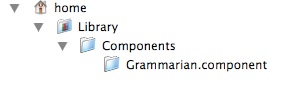
Also, what sometimes works is to look for the Grammarian.component in the Users/~/Library/Components folder,
drag the Grammarian.component from the Components folder to the Desktop, drag it back into the
Components folder, and then Restart immediately. This seems to get the system to recognize the component so that the
system knows that the system caches need to be rebuilt when the system starts up again. The component location is shown here:
Also, many solved this by trashing the preference file that contains the input menu configuration, restarting and then
configuring it again. To do this, navigate to your home ~/Library/Preferences/ByHost folder, trash all the files named
like com.apple.HIToolbox.###########.plist. Restart immediately. Once you are logged in again, open the System
Preferences/International/Input Menu tab, and configure it again.
Also, note that a very rare Mac OS X bug exists in which the system will sometimes not read its system input menu preferences at
bootup. Logging out and back seems to always cure this as the system does successfully read the preferences during a login.
And note that none of these procedures should be necessary in Mac OS X 10.6 Snow Leopard as the pertinent Apple bugs seem to have been fixed.
Question: Can I make my own user spelling dictionaries? Answer:
Yes. Create a regular document text file of file type: TEXT in a text
utility. Paste your words into the document and sort them. Try to make all the words lowercase if possible. Then, add this file
with the Add... button on the Grammarian Writing Rules Spelling pane. This will convert the file into a dictionary, and it is now
in the Spelling pane and pencil menu’s Spelling menu. You'll need to switch the dictionary on to make it
active. Some programs that save true TEXT files are AppleWorks (when the Text format is selected), BBEdit,
and Tex-Edit Plus. TextEdit files are usually of the type RTF and will not work.
Question: Interactive Checking stopped working. How can I get it to work again? Answer:
Yes, we get several reports on this every time that Apple releases a system update. The system updates either do not update all system files, change the system cache, or change the system level
permissions. This affects other files as well.
If upgrading OS X caused this, the fix then is to update with the Combo OS X updater. Grab the OS X combo updater instead of the
standard updater and update again over your existing installation. The file size is larger than the standard updater and includes
all pristine OS X files. (http://support.apple.com/downloads/)
Also, simply repairing permissions with Disk Utility (Applications/Utilities) has proven to be a successful fix
for small Apple updates such as QuickTime.
Question: I seem to be having problems with Grammarian PRO X windows and sometimes get the spinning beach ball. What should I do? Answer:
If the Grammarian preference file gets
partially written or damaged, this could cause strange behavior. Quit Grammarian PRO X, find the Grammarian preferences file in
the Users/Library/Preferences folder, and throw this file into the trash. The next time Grammarian runs, it’ll build a
new preference file.
Question: Where can I get multilingual spelling dictionaries, and how do I install them in Grammarian PRO X? Answer:
Additional spelling dictionaries (Australian,
British, Canadian, French, Italian, Japanese, Spanish, etc.) can be downloaded from the Downloads
page on our Web site. Install these dictionaries with the Add... button in the Grammarian Writing Rules dialog Spelling pane.
Question: Turning off all the spelling dictionaries and doing Check All... underlines all the words in red in the error view. Is this a bug? Answer:
No, this isn't a bug. Check All... selects all the text and then checks all the
spelling and grammar of the text. Manually turning off all the spelling dictionaries does not turn off the spell checking
function. However, turning off all the spelling dictionaries does turn these off as expected. Thus, all the words would be
considered spelling errors. Use the Check Selection/Check Grammar... menu item to check only grammar if this is your
intention.
Question: All Interactive Grammar Checking functions stopped working, and the Grammarian pencil menu icon is blue. What can I do? Answer:
You can try this: quit Grammarian, then drag the Users/~/Library/Application
Support/Grammarian folder to the desktop. Run the Grammarian application again to make Grammarian create a new
Application Support/Grammarian folder. Then log out or restart (to clear the memory). Is everything working now?
The interactive preferences are stored in the file: Tool Params which is located in the Application
Support/Grammarian folder. If this file cannot be read or written, then you'll get the blue pencil menu and the loss of
interactive functionality. When Grammarian runs again, it knows to create a fresh Application Support/Grammarian folder.
Once everything is working normally, you can replace all the dictionary folders from the Grammarian folder that you placed on the
desktop (quit the Grammarian application first). This will restore your settings. Do not replace the Tool Params file
that was just created. This procedure is also a remedy for Grammarian Menu Keyboard Shortcuts that do not stick.






 FAQ
FAQ